
Matter Development with NX Families
This tutorial builds the complete Matter over Thread workflow from source.
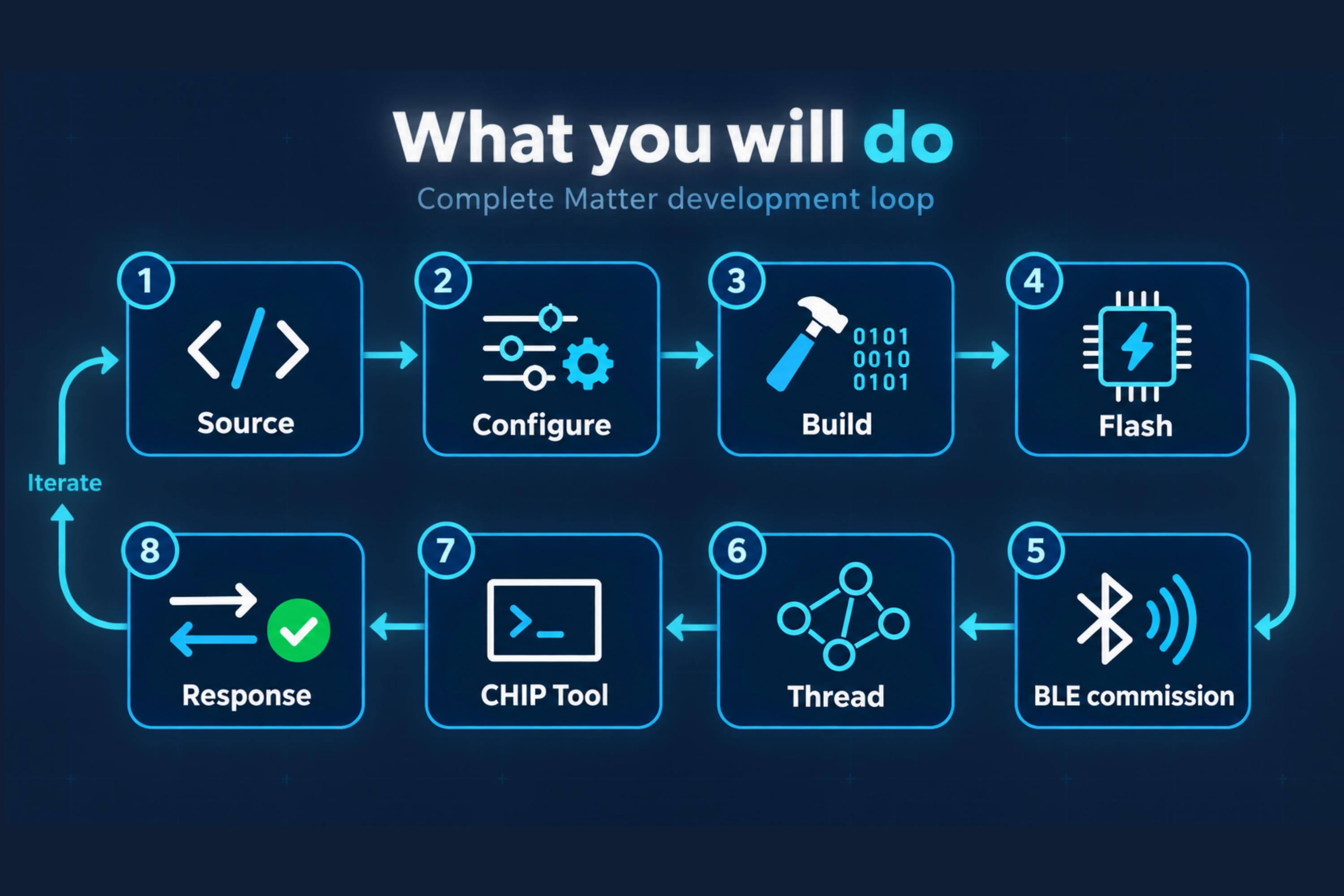
You will select a Matter sample, build it for an approved NX board target, flash the result, commission the device over Bluetooth Low Energy, and send a Matter command over Thread.
Required validation The commands use placeholders for KORLINX-specific targets and paths. Replace them only with values validated on the corresponding NX hardware revision and SDK release.
What you will do
- Open the approved SDK workspace.
- Select the Matter sample and NX board target.
- Configure the application.
- Build and flash the firmware.
- Prepare a Thread network and CHIP Tool.
- Commission the NX device over Bluetooth Low Energy.
- Send a Matter command.
- Confirm the application and serial-log response.
Prerequisites
Complete the following tutorials first:
Prepare:
- A supported NX development platform
- The KORLINX-approved SDK workspace
- The matching toolchain
- The KORLINX NX board definition
- A Matter sample source tree
- A data-capable USB cable and required debugger
- A serial terminal
- A Thread Border Router
- CHIP Tool compatible with the selected SDK and Matter release
Validated configuration
Complete this table before publishing the tutorial.
| Item | NX15 | NX40 |
|---|---|---|
| Hardware revision | [CONFIRM] | [CONFIRM] |
| Board target | [NX15_BOARD_TARGET] | [NX40_BOARD_TARGET] |
| SDK release | [CONFIRM] | [CONFIRM] |
| Matter version | [CONFIRM] | [CONFIRM] |
| Sample path | [CONFIRM] | [CONFIRM] |
| Build configuration | [CONFIRM] | [CONFIRM] |
| Debug interface | [CONFIRM] | [CONFIRM] |
| Serial settings | [CONFIRM] | [CONFIRM] |
| Tested Border Router | [CONFIRM] | [CONFIRM] |
| Tested controller | [CONFIRM] | [CONFIRM] |
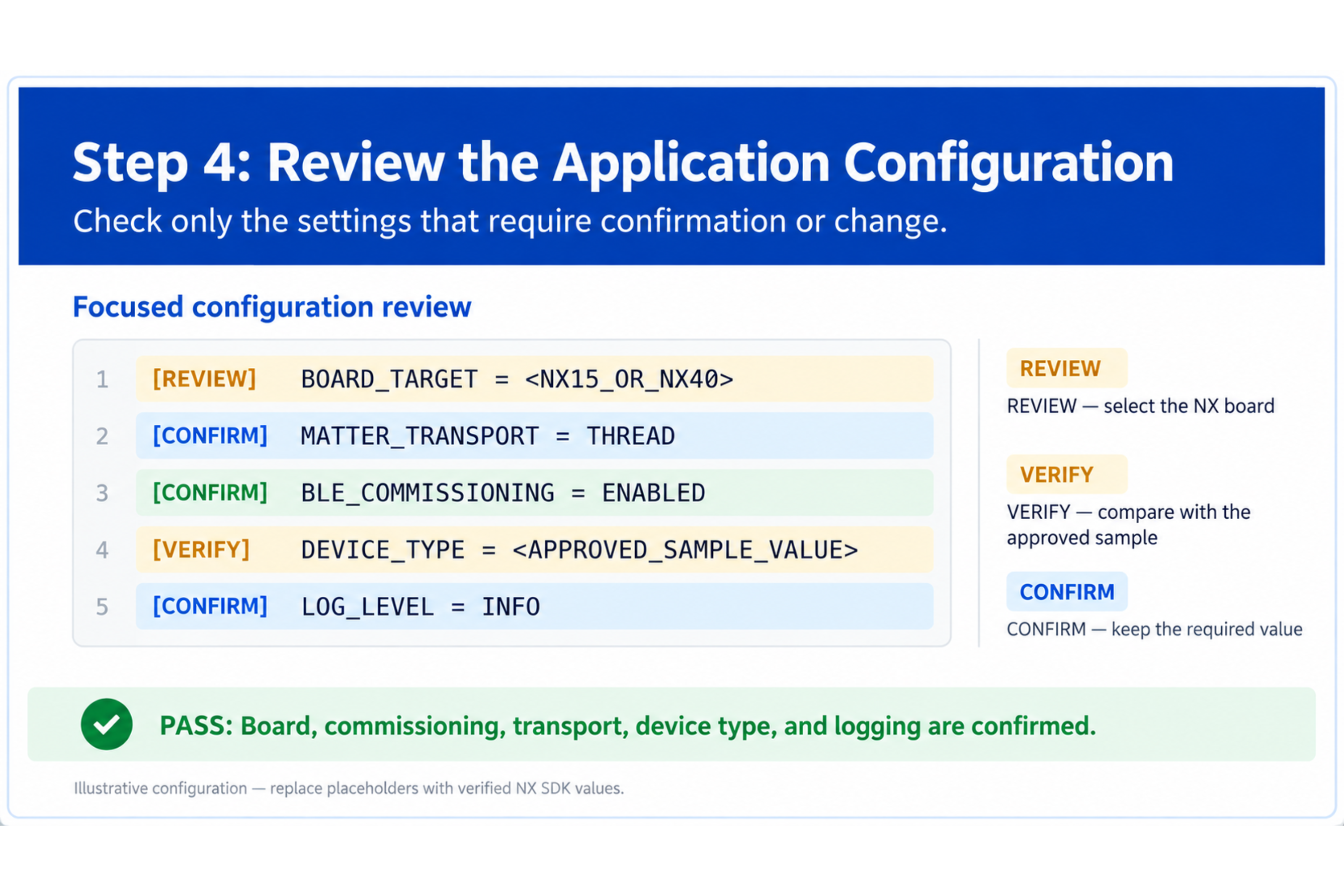
Step 1: Open the approved SDK workspace
Open the nRF Connect SDK installation from VS Code or start an SDK terminal.
Confirm the workspace state:
west topdir
west list
Confirm that the Matter source required by the approved release is available.
Matter source location Matter support is integrated in nRF Connect SDK v3.4.0 and earlier. Nordic provides Matter samples through the Matter Add-on for later releases. This tutorial must use one validated approach and must not mix commands or sample paths from different releases.
Developer reference keywords: west manifest, sdk-nrf, ncs-matter add-on, connectedhomeip, Matter release compatibility
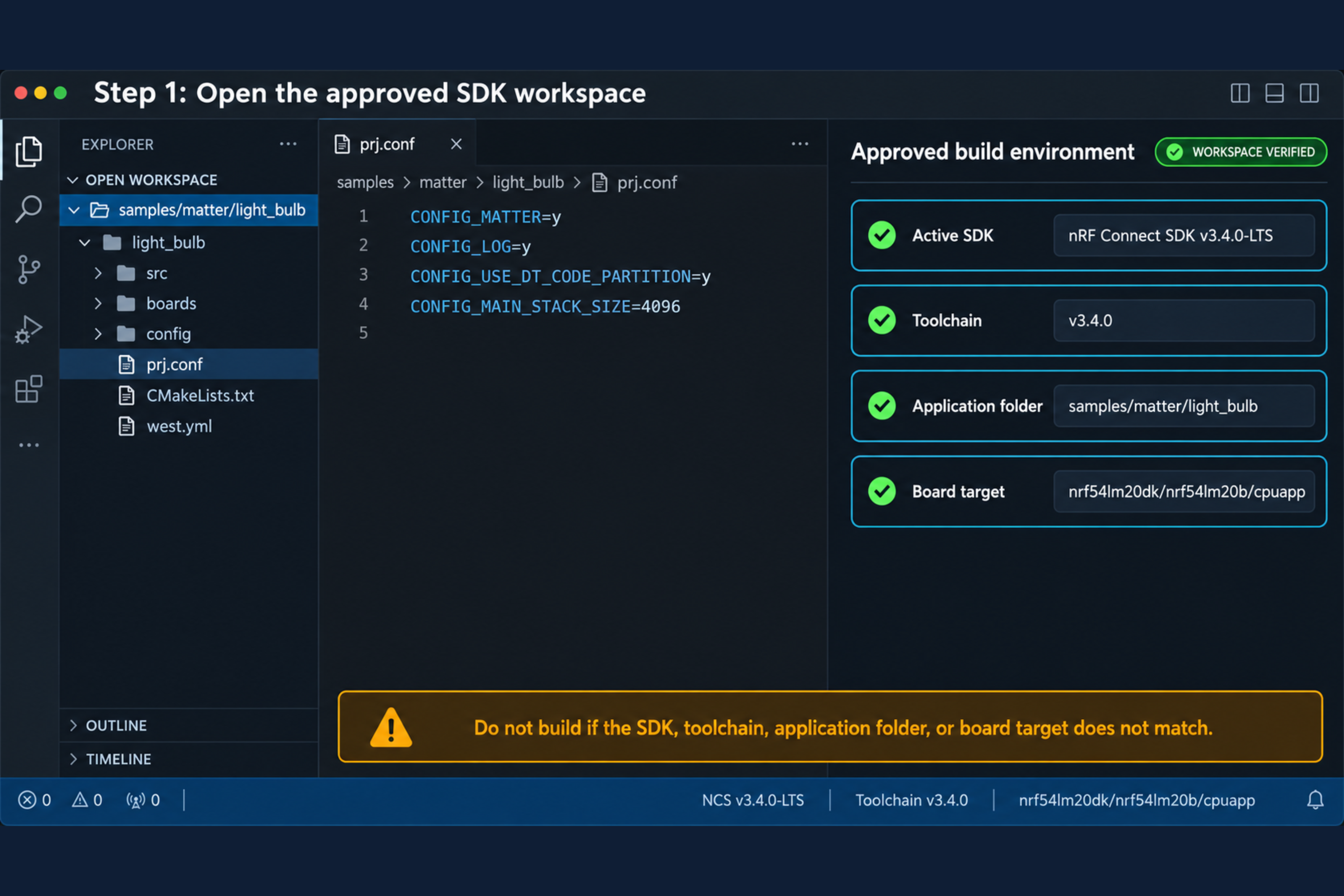
Step 2: Locate the Matter sample
Use the KORLINX-approved sample path:
[MATTER_SAMPLE_PATH]
The recommended first sample is a Matter light or minimal template because it provides a visible command result and a limited application surface.
Confirm that the sample contains the expected files before continuing:
CMakeLists.txt
prj.conf
src/
boards/ or board-specific overlays, when required
sysbuild/, when required by the selected release
Step 3: Select the NX board target
Set the board target for the connected NX development platform.
NX15: [NX15_BOARD_TARGET]
NX40: [NX40_BOARD_TARGET]
Do not substitute the following Nordic development-kit targets as NX targets:
nrf54l15dk/nrf54l15/cpuapp
nrf52840dk/nrf52840
Those targets confirm Nordic SoC and DK sample support, but the KORLINX board definition must describe the actual NX hardware.
Developer reference keywords: Zephyr custom board, board.yaml, Devicetree, Kconfig.defconfig, board target qualifiers
Step 4: Review the application configuration
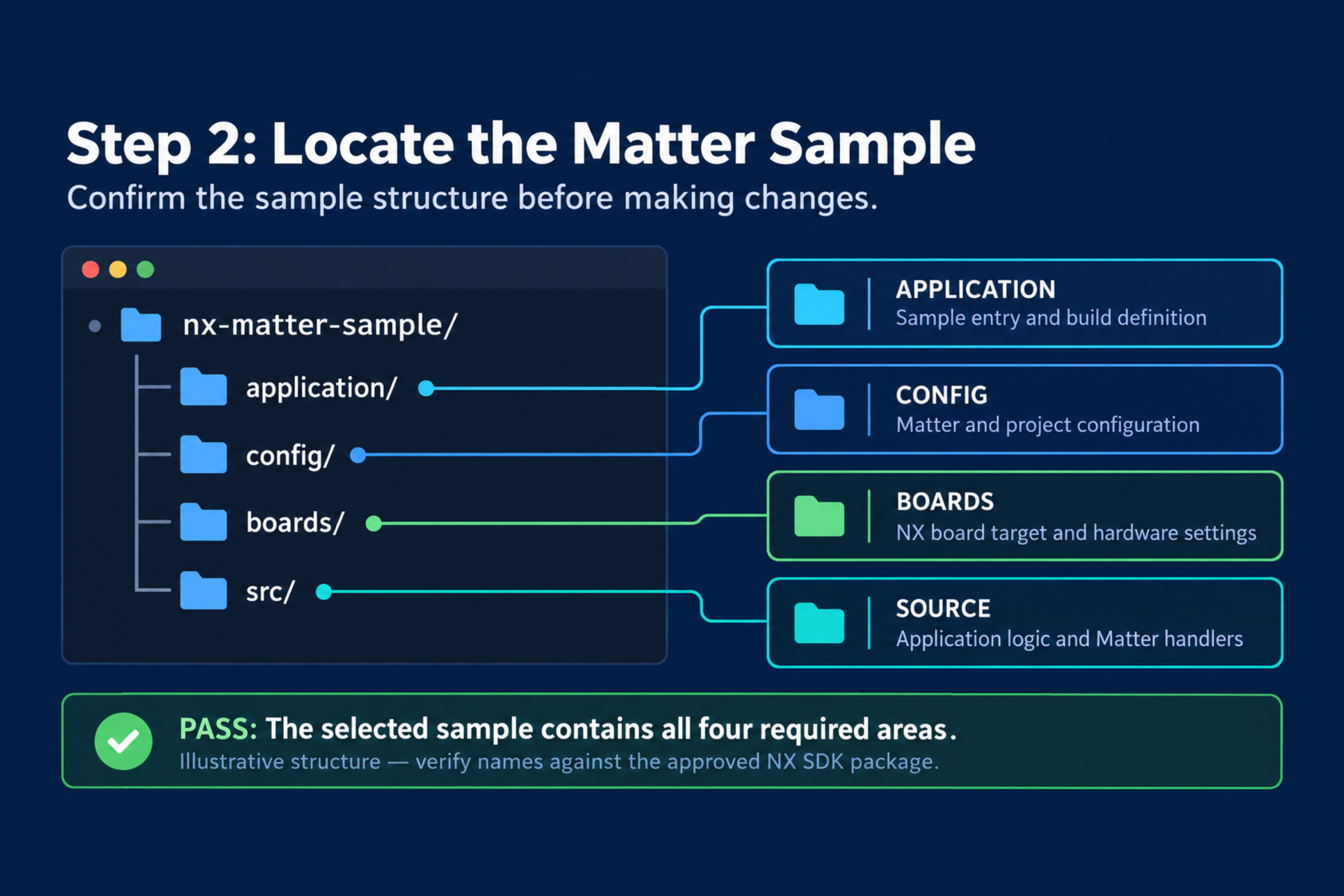
Review the following files or configuration areas before building:
prj.conf- Board-specific
.conffiles - Devicetree
.overlayfiles - Partition or sysbuild configuration
- Matter device configuration
- Application LED and button mapping
Confirm that the build is configured for Matter over Thread, not Matter over Wi-Fi.
Do not change settings that are not required for this tutorial.
Developer reference keywords: CONFIG_CHIP, Matter over Thread Kconfig, OpenThread, sysbuild, partition manager, Devicetree overlay
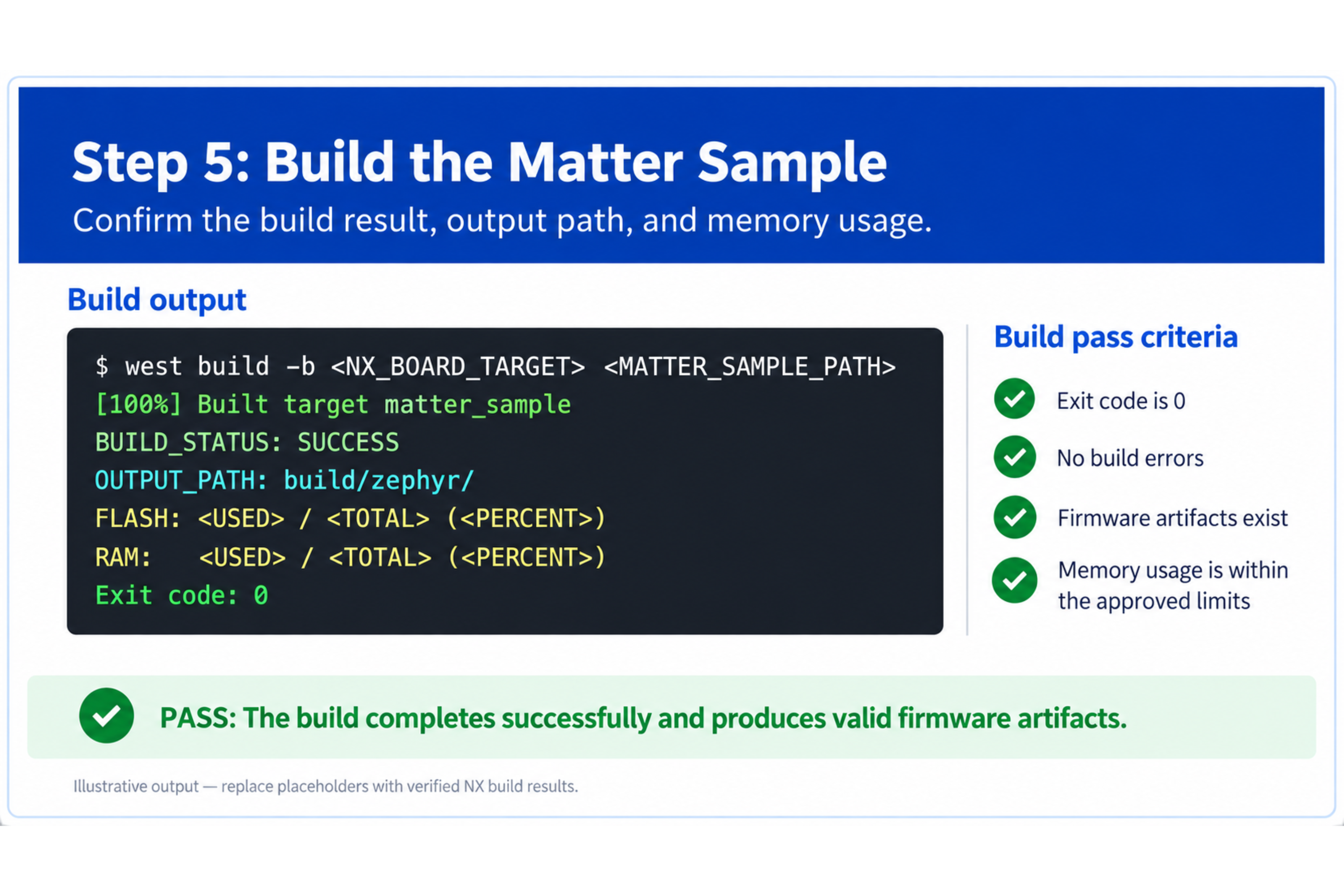
Step 5: Build the Matter sample
From the approved SDK terminal, run:
west build -p always -b [NX_BOARD_TARGET] [MATTER_SAMPLE_PATH]
If the approved out-of-tree application requires sysbuild explicitly, use:
west build -p always --sysbuild -b [NX_BOARD_TARGET] [MATTER_SAMPLE_PATH]
Do not add --sysbuild automatically. Use the command validated for the selected SDK and repository layout.
The build passes when it completes without an error and produces the expected flashable output.
Expected output file: [CONFIRM]
Expected build completion text: [CONFIRM]
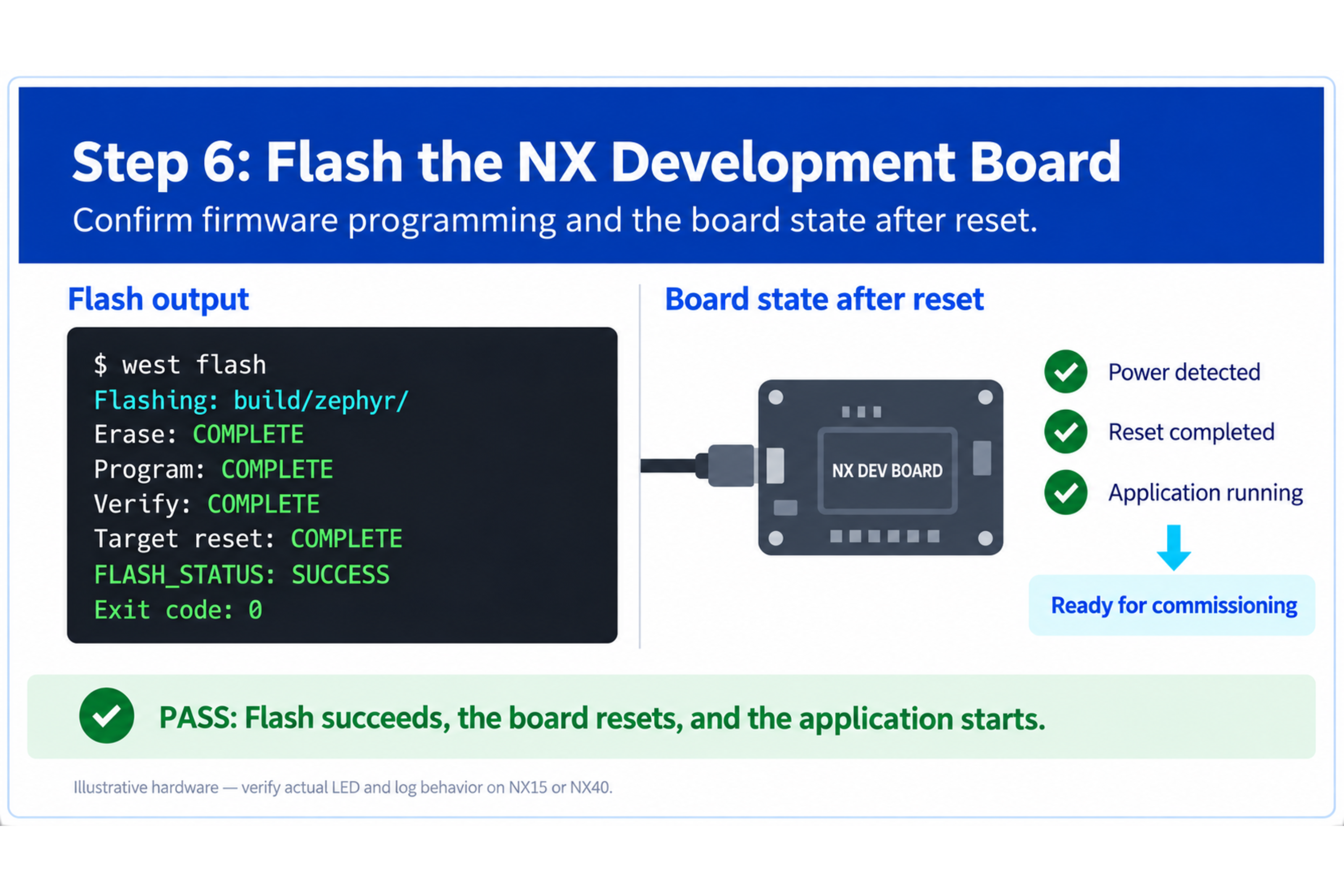
Step 6: Flash the NX development board
- Connect the board and confirm that it is detected.
- Flash the current build:
west flash
- Reset the board if the runner does not reset it automatically.
- Open the serial terminal using the validated settings.
- Confirm the expected boot and commissioning-window logs.
If an erase is required before the first Matter test, use only the approved erase procedure for the board and debugger.
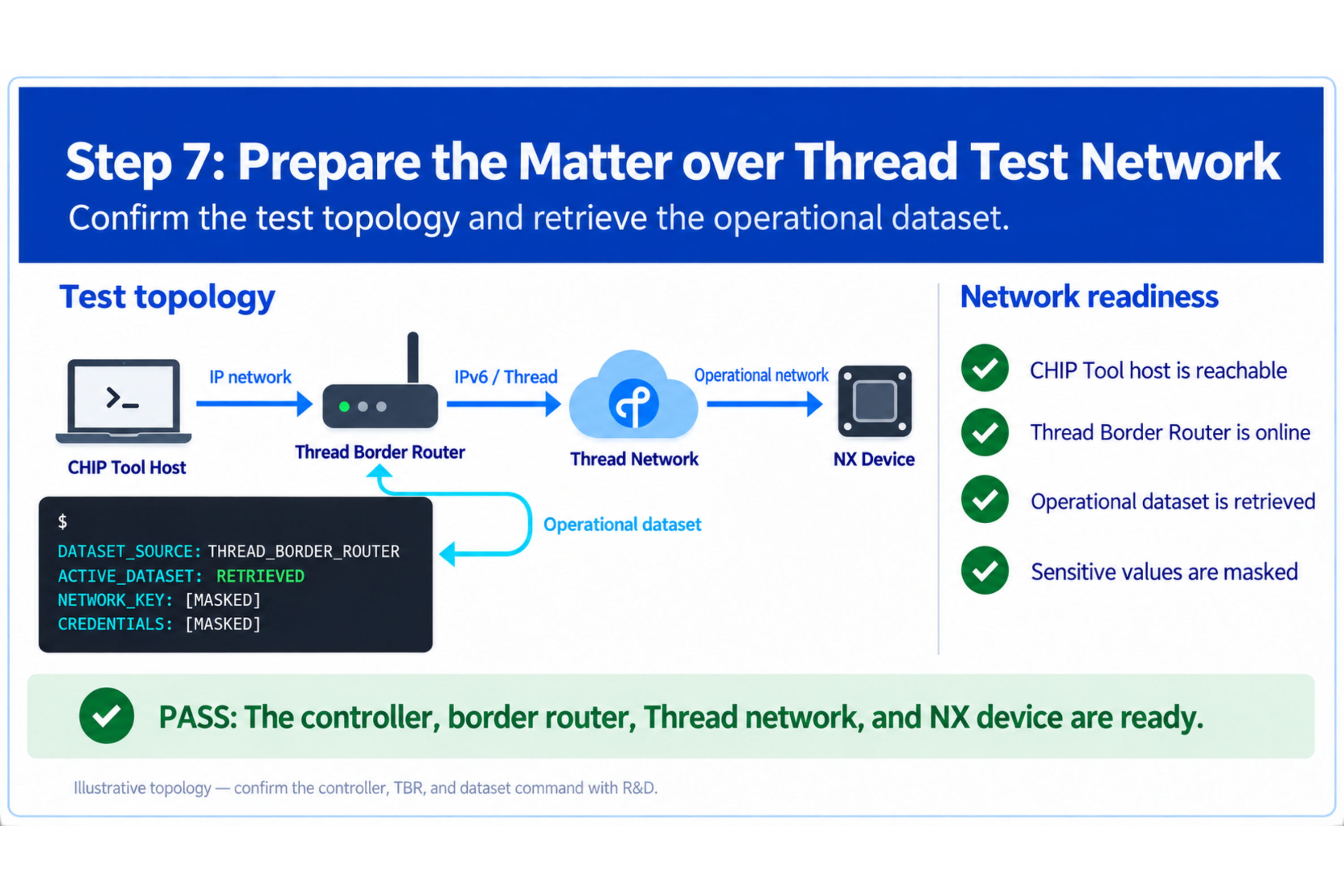
Step 7: Prepare the Matter over Thread test network
Prepare one validated test environment:
- Thread Border Router
- CHIP Tool host or validated commercial Matter controller
- IPv6 connectivity between the controller and Border Router
- Compatible CHIP Tool package for the selected SDK and Matter release
Obtain the active Thread Operational Dataset from the Border Router.
Thread dataset: [ACTIVE_OPERATIONAL_DATASET_HEX]
Treat the dataset as test-environment information. Do not publish credentials for a private operational network.
Developer reference keywords: OpenThread Border Router, OTBR, active operational dataset, IPv6, mDNS, Matter CHIP Tool
Step 8: Open the commissioning window
Confirm that the NX device is advertising over Bluetooth Low Energy.
If required, use the validated button or reset action:
Commissioning action: [CONFIRM]
Expected advertising log: [CONFIRM]
Expected LED pattern: [CONFIRM]
If the device belongs to an earlier Matter fabric, remove it from that fabric or perform the validated factory-reset procedure before continuing.
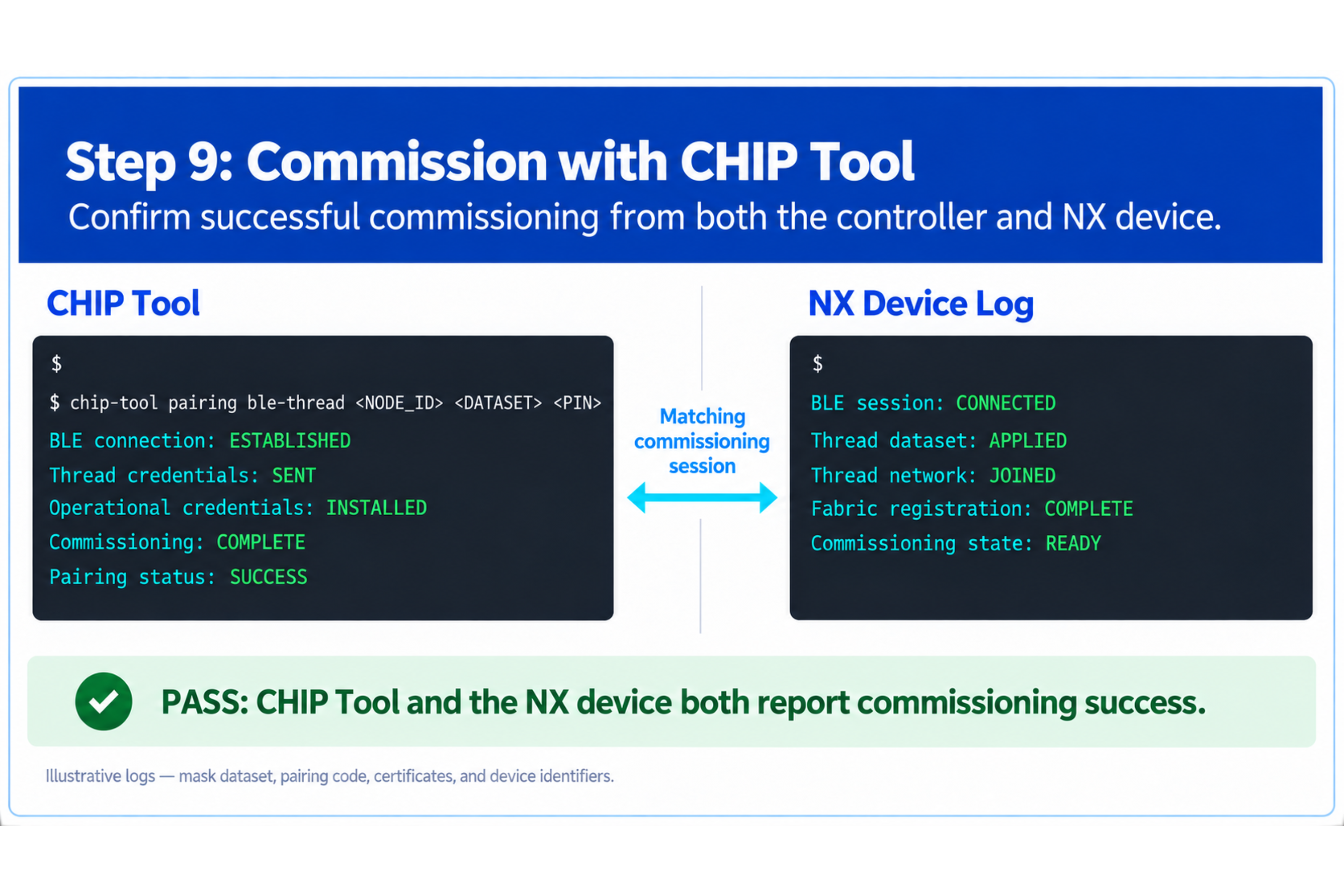
Step 9: Commission with CHIP Tool
Set the values used by your test environment:
Node ID: [NODE_ID]
Thread dataset: [ACTIVE_OPERATIONAL_DATASET_HEX]
Setup PIN code: [SETUP_PIN_CODE]
Discriminator: [DISCRIMINATOR]
Run the Matter over Thread commissioning command:
chip-tool pairing ble-thread [NODE_ID] hex:[ACTIVE_OPERATIONAL_DATASET_HEX] [SETUP_PIN_CODE] [DISCRIMINATOR]
The command passes when CHIP Tool reports successful commissioning and the NX serial log reports that the device joined the Matter fabric and Thread network.
:::warning Test values Never copy setup codes, discriminators, datasets, or certificates from a screenshot. Use values generated or assigned for the exact development image being tested. :::
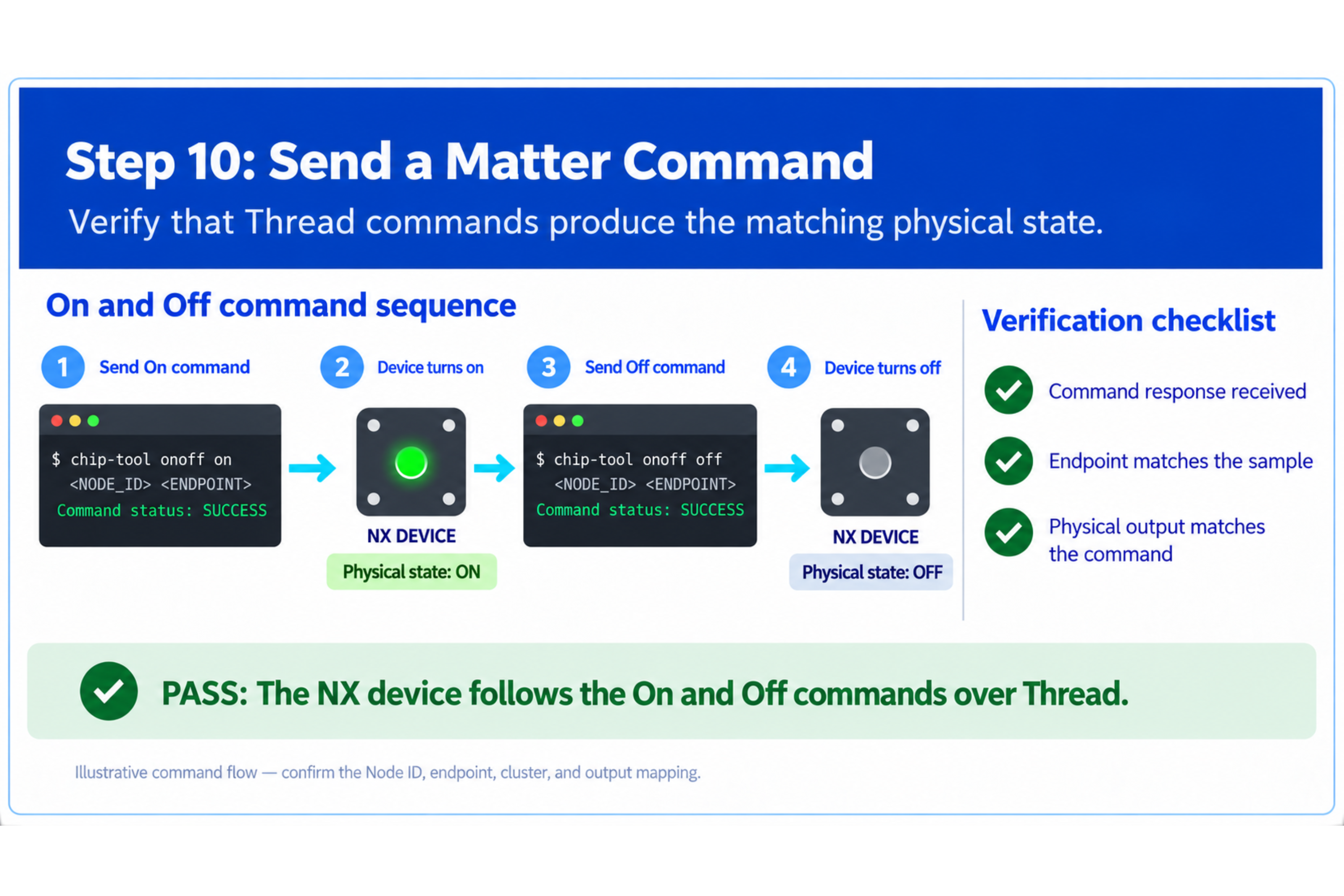
Step 10: Send a Matter command
For an On/Off Light sample, send On to the validated endpoint:
chip-tool onoff on [NODE_ID] [ENDPOINT_ID]
Then send Off:
chip-tool onoff off [NODE_ID] [ENDPOINT_ID]
Confirm both:
- The physical LED or connected load changes state.
- The serial log reports the expected application event.
Node ID: [CONFIRM]
Application endpoint: [CONFIRM]
Controlled LED or load: [CONFIRM]
Developer reference keywords: OnOff cluster 0x0006, Matter endpoint, chip-tool onoff, attribute update callback
Step 11: Rebuild after a controlled change
Make one small, validated application change, such as the initial LED state or an approved identification value.
Rebuild and flash:
west build -p always -b [NX_BOARD_TARGET] [MATTER_SAMPLE_PATH]
west flash
Repeat the relevant verification step and confirm that the change is present.
Do not modify vendor identifiers, product identifiers, certificates, device types, or cluster definitions unless the tutorial explicitly requires it.
Expected result
The tutorial is complete when:
- The Matter sample builds from the approved source release.
- The output is flashed to the correct NX development platform.
- The device opens a Bluetooth Low Energy commissioning window.
- CHIP Tool commissions the device using the Thread Operational Dataset.
- The device joins the Thread network.
- CHIP Tool sends a command to the correct endpoint.
- The physical device and serial log show the expected response.
- A controlled source change can be rebuilt and verified.
Troubleshooting
| Problem | Action |
|---|---|
| Board target is unknown | Stop and obtain the KORLINX board-support package and approved target from R&D. |
| CMake or Kconfig error | Confirm the SDK release, toolchain, sample branch, board definition, and configuration files are from the same validated set. |
| Build runs out of memory | Use the approved build configuration and review partition, logging, feature, and external-memory requirements. |
west flash cannot find the board | Check the debugger, cable, power, device permissions, and selected runner. |
| BLE commissioning window is not visible | Reset the board or use the approved action to reopen the window. |
| CHIP Tool cannot commission | Confirm the CHIP Tool version, dataset, setup code, discriminator, Bluetooth access, and factory-reset state. |
| Device joins Thread but commands fail | Confirm IPv6/mDNS reachability, node ID, endpoint, cluster, access control, and controller state. |
| On/Off command succeeds but the LED does not change | Confirm the application callback and board-specific LED mapping. |
Official references
- Nordic Semiconductor - Matter in nRF Connect SDK
- Nordic Semiconductor - Matter Template sample
- Matter Project - Working with CHIP Tool
🎉 You're Ready!
You Built and Controlled an NX Matter Device
You've built the Matter sample from source, flashed it to an NX development platform, commissioned it over Bluetooth Low Energy, and controlled it over Thread.
You are now ready to identify where the application behavior and Matter data model are implemented.
Here's what you accomplished:
- ✅ Opened the validated SDK and Matter source
- ✅ Selected the correct NX board target
- ✅ Reviewed the Matter over Thread configuration
- ✅ Built and flashed the application
- ✅ Prepared the Thread test network
- ✅ Commissioned the device with CHIP Tool
- ✅ Sent a Matter command to the correct endpoint
- ✅ Verified the physical and serial-log response
- ✅ Rebuilt the application after a controlled change
What's Next?
Framework Overview
Locate the Matter Node, Endpoint, Clusters, attributes, commands, and application callbacks.
Quick Start
Return to the prebuilt workflow when you need a clean commissioning reference.
Developer Resources
Continue with the validated KORLINX examples, board support, and SDK references.
Resource link: Pending confirmation of the public developer-resource URL.
You can now reproduce the complete NX Matter development loop from source to an operational Matter command.